Book Appointment Now

How Battery Saver Mode Works on Smartphones
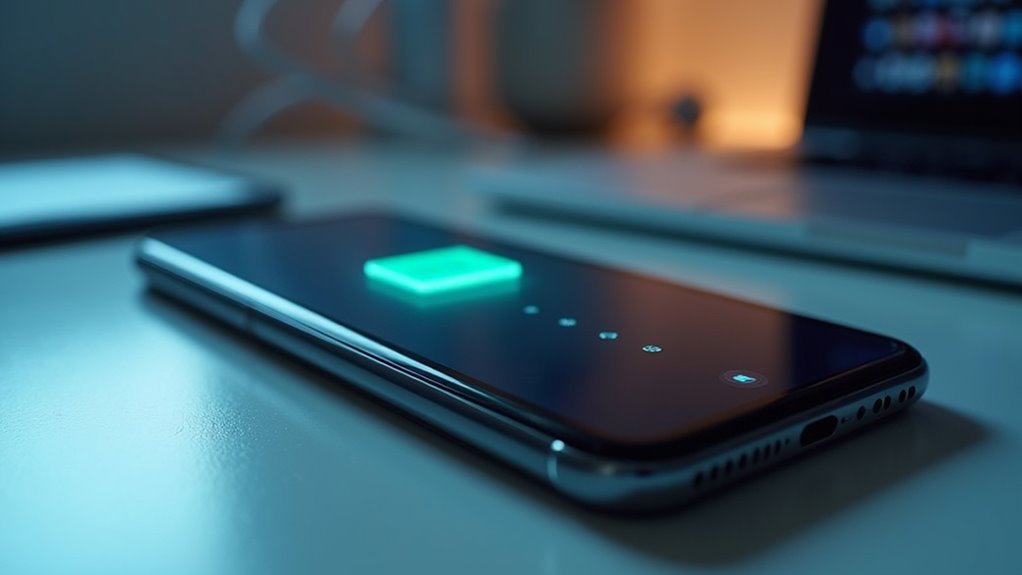
Battery Saver Mode reduces screen brightness, limits background app activity, and cuts CPU performance to stretch remaining charge. It pauses automatic updates and restricts location, Bluetooth, and syncing to lower power draw. Notifications and visual effects are simplified to save energy. Some phone features keep full functionality, while nonessential services run less often. These changes extend battery life and help the device stay usable longer during the day.
What Battery Saver Mode Changes
Whenever Battery Saver Mode turns on, it makes a few quiet but significant changes that help your phone stretch its remaining charge. You’ll notice dimmer brightness, fewer animations, and slower background activity, so your screen feels calmer and less busy.
Battery notifications might appear less often, and app updates won’t rush in as quickly. Your widgets can also change their behavior, since they could refresh less frequently to spare energy.
Should you rely on maps, mail, or chat, the phone might wait a little longer before checking for new info. That can feel odd at outset, but it’s normal.
These changes work together, so you can keep using your phone with less worry, even whenever the battery bar looks uncomfortably low.
How Battery Saver Mode Saves Power
Battery Saver Mode saves power by dimming your screen, which cuts one of the biggest drains on your phone.
It also limits background activity, so apps don’t keep checking for updates, syncing data, or using energy while you’re not looking.
On top of that, it slows the processor a bit, which helps your battery last longer without making the phone work as hard.
Reducing Screen Brightness
Lowering your screen brightness is one of the easiest ways to make Battery Saver Mode work harder for you, because the display usually uses more power than almost anything else on your phone.
Whenever you turn the brightness down, your phone can stretch each bit of charge farther, and that helps you feel a little more in control whenever the battery icon starts to slip. Many phones also use adaptive dimming, so the screen can adjust itself with help from ambient sensors as soon as your surroundings change.
That means you don’t have to keep fixing it all day. Together, these changes keep the screen clear enough to read while still saving energy. It’s a small move, but it can make your phone feel more reliable when you need it most.
Limiting Background Activity
Even although your phone looks idle, it can still be busy in the background, and that concealed work quietly drains the battery. Battery Saver steps in via limiting those concealed tasks so you can stay connected longer without feeling cut off from your apps or people. It slows syncing, pauses constant refresh checks, and reduces wake locks that keep apps awake whenever you aren’t using them.
With app prioritization, your phone gives attention to the things you need most and holds less critical activity until later. As a result, emails, news feeds, and cloud backups wait a little, while your essential alerts still come through. This careful balance helps you feel part of your digital world, even though the battery meter is low.
Slowing Processor Speed
Your phone can feel tired whenever the battery gets low, and that’s where Battery Saver quietly helps through slowing the processor down. You still get the basics, but your device stops pushing so hard, so it uses less energy and stays with you longer.
It might lower peak speeds, trim task scheduling, and apply adaptive undervolting whenever supported. That means your apps can open a bit slower, yet your phone keeps working without wasting power on extra rush.
You’ll notice less heat too, which can feel nice in your hand. Because the system gives priority to essential tasks, you get a calmer phone that still answers your needs. It’s a smart trade, and you’re not alone if you choose it.
Top Battery Drainers on Your Phone
Your screen often drains the most power, especially whenever you keep the brightness high, so turning it down can make a real difference.
Background apps can keep checking for updates and syncing even whenever you’re not using them, which quietly eats into your battery.
Mobile data also pulls more power than Wi‑Fi in many cases, so provided your signal is weak or you’re streaming a lot, your phone can run down faster than you’d expect.
Screen Brightness
Screen brightness is one of the biggest battery drains on a smartphone, and it can quietly wear your charge down faster than you expect.
Whenever you keep the display bright, your phone works harder, so battery saver steps in with adaptive dimming to ease that load. You can also trust color calibration to keep the screen readable without wasting extra power.
Try this:
- Lower brightness a little before the day slips away.
- Let adaptive dimming adjust with your light.
- Use darker themes while you’re with your crew.
- Keep color calibration balanced, not overly vivid.
These small moves help you feel less cut off whenever your battery gets low. Together, they make battery saver feel like a smart teammate, not a punishment.
Background Apps
Background apps can quietly sneak in extra battery drain, even while you’re not using them. You could feel frustrated whenever your phone drops fast, but you’re not alone. Many apps still check for updates, refresh feeds, and keep background queues moving.
App sandboxing helps protect your data, yet it doesn’t stop every concealed task. So Battery Saver steps in and slows those jobs down. It limits syncing, pauses repeated checks, and gives your phone a break.
You’ll often notice fewer surprise alerts and less heat, too. Should an app not need your attention, let Battery Saver hold it back. That way, you stay connected to the apps you care about, while your phone saves power for later.
Mobile Data Usage
Mobile data can quietly eat through both your battery and your patience. Whenever your phone keeps reaching for a weak signal, it works harder, and you feel the drain fast.
- Streaming video burns power because your screen and radio stay busy.
- Constant app syncing adds stress, even whenever you’re not looking.
- Hotspots and downloads make your device heat up and fade.
- Roaming can push your phone to search nonstop, which hurts you.
Battery Saver Mode on Android vs iPhone
Although Android and iPhone both try to stretch your battery, they do it in different ways, and that can change how your phone feels during a low-power day.
On Android, Battery Saver usually gives you more control, so you can set at what point it starts and how strict it gets.
On iPhone, Low Power Mode feels tighter and more automatic, which fits Apple’s iOS Differences and Ecosystem Integration.
You might notice Android dims more options at once, while iPhone keeps the experience simpler and steadier.
So, should you like choosing your own settings, Android could feel like your crew.
Should you want a cleaner, hands-off path, iPhone could fit you better.
Either way, both aim to help you stay connected without draining your phone too fast.
What Happens to Background Apps and Sync
Once Battery Saver turns on, your phone starts putting background apps on a tighter leash, so they don’t keep sipping power while you’re not using them. That means your chats, mail, and feeds might wait a bit before they wake up. You’re still part of the group, but the phone asks everyone to stay quiet and save energy.
In practice, you could notice:
- Fewer refresh checks
- Slower cloud syncing
- Notification delays
- More app whitelisting control
If you need one app to stay active, you can add it to app whitelisting and keep it connected. For the rest, the phone trims background work, which helps your battery last longer without cutting you off completely. It’s a small trade, and you can usually choose what matters most to you.
How Battery Saver Slows Your Phone Down
Battery Saver doesn’t just quiet your apps in the background, it also asks your phone to work a little less hard up front. You could notice slower app launches, softer animations, and a bit less snap when you tap around. That happens because Battery Saver trims CPU speed and can trigger thermal throttling, so your phone uses less energy and makes less heat.
It also cuts display refresh behavior, which helps the battery, but can make scrolling feel less silky. On top of that, you might see notification delays, since your phone checks for updates less frequently. None of this means your phone is broken. It’s simply trading speed for staying power, so you can keep moving with the same crew a little longer.
When to Turn On Battery Saver Mode
Turn on Battery Saver before your phone hits a true panic point. You don’t need to wait for a shutdown scare. Should you see low power alarms, feel stuck away from a charger, or know you’ve got a long evening ahead, switch it on ahead of time. That move helps you stay in the group text, the map, and the moment.
- At 30% or lower, once your battery starts to feel tense
- Before travel, so you’re not stranded mid-trip
- During long work or school days, whenever outlets play hard to get
- Once adaptive scheduling predicts a busy stretch, so your phone stays ready
Should you charge often, you can also use it as a routine habit. Then you and your phone work together, not against each other.
More Ways to Save Battery
A few small changes can stretch your phone’s charge even further, and they’re easy to stack with Battery Saver Mode. You can lower screen brightness, shorten screen timeout, and keep Wi-Fi on whenever you’re home or at work. Turn off Bluetooth, Location, and hotspot use whenever you don’t need them.
Close accessories you’re not using, because accessory management helps cut extra drain from earbuds, watches, and cables. Keep apps updated, since fixes often improve power use.
Provided your phone supports adaptive charging, let it learn your routine so it spends less time at full charge. Also, avoid leaving the phone in hot places, and remove cases that trap heat while charging. These habits fit naturally into your day and help your battery last longer.
Battery Saver Mode Trade-Offs You’ll Notice
Even though Battery Saver Mode can be a real lifesaver, you’ll notice a few trade-offs right away. Your phone might feel a little less lively, and that’s normal. It joins you in cutting power, but it also slows a few comforts you’re used to.
- You might see notification delays, so messages can land a bit late.
- Adaptive brightness might dim the screen more often, which can feel harsh indoors.
- Apps can open slower because the phone trims background work.
- Scrolling and animations might look less smooth, so the whole screen feels quieter.
Still, you’re not alone in this. Many people use Battery Saver Mode whenever they need every last percent, even though it means giving up a little speed and sparkle for a while.
Frequently Asked Questions
Can Battery Saver Turn on Automatically at a Set Percentage?
Yes, you can set Battery Saver to turn on automatically at scheduled thresholds, like 20% so you stay connected longer and feel in control. You will get gentler power use without constant checking.
Does Battery Saver Affect Bluetooth or GPS Use?
Yes, it can. You will often see Bluetooth restrictions and changed GPS behavior, so your phone might scan less, sync less, or restrict location updates. That helps you save power while staying connected.
Is Extreme Battery Saver Different From Regular Battery Saver?
Yes. Extreme Battery Saver is the stricter cousin you did not invite to the party. You get more background restrictions and reduced performance than regular Battery Saver, so your phone clings to life while acting dramatically less social.
Will Battery Saver Turn off When My Phone Is Charged?
Yes, it usually will. You can set an auto disable charge threshold, and many phones turn Battery Saver off once you reach a chosen percentage, often around 90 percent, so you do not stay limited longer.
Can I Choose Which Apps Still Work in Battery Saver Mode?
Yes, on some phones you can keep certain apps active in Battery Saver mode through app whitelisting and selective permissions. You will still have access to your essentials while everything else steps back to help your battery last longer.